
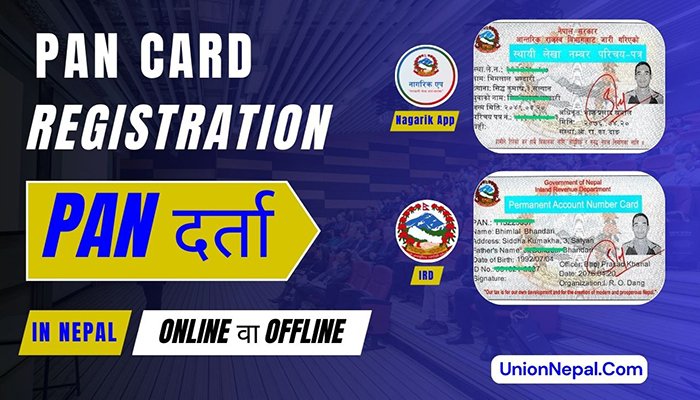
PAN Card Registration In Nepal – Personal PAN – Online Registration And Nagarik App – 2026
What Is A PAN Card In Nepal?
A Permanent Account Number (PAN) Card is a unique 9-digit identification number issued by Nepal’s Inland Revenue Department (IRD). Every individual, business and legal entity that pays taxes in Nepal must obtain one.
Whether you are a salaried employee, a freelancer or a business owner, your PAN Card is your official financial identity in Nepal.
This PAN Card is required for opening bank accounts, filing tax returns, conducting large transactions, get paid from any private and government services (Like – Myagdi Police/Prahari Payment) and even monetizing online platforms such as Google, YouTube and Facebook.
This comprehensive guide covers everything you need to know – what a PAN Card is, who needs one, what documents to prepare and exactly how to register for a Personal (Individual) PAN Card in Nepal – both through the official IRD website and through the Nagarik App – along with how to search for or recover your PAN details online.
Legal Framework Governing PAN In Nepal
The PAN system in Nepal is governed by the following legislation.
| Law / Authority | Key Provision |
| Income Tax Act, 2058 (Section 78) | Mandates PAN registration for all persons with taxable income – authorizes IRD to require PAN on income statements, returns and financial documents. |
| Financial Procedure Act, 2055 | Requires PAN in all government-related procurement and income reporting. |
| Inland Revenue Department (IRD) | The official authority that issues and manages PAN numbers – regularly updates procedures via circulars. |
Who Needs A PAN Card In Nepal?
The following individuals and entities are legally required to register for a PAN.
- Salaried employees – mandatory for receiving formal salary payments.
- Freelancers and self-employed professionals earning income in Nepal.
- Business owners of all sizes – sole proprietors, partnerships, companies.
- NGOs, INGOs and not-for-profit organizations.
- Foreign investors and foreign nationals engaged in financial or business activities in Nepal.
- Individuals making high-value purchases such as land, property or vehicles.
- Anyone opening certain types of bank accounts (requirements vary by account type).
- Online content creators – Google, YouTube, Facebook and similar platforms require a PAN number for monetization.
Under Section 117 of the Income Tax Act, failing to obtain a PAN when required can result in a fine of up to NRs. 1, 00,000/- disqualification from government tenders and inability to file income tax returns.
Documents Required For Personal PAN Registration
Prepare the following documents before you begin your application.
| For Nepali Citizens | For Foreign Citizens |
| • Citizenship certificate (front and back clearly visible in one photo). • Passport-sized photograph. • National Identity Card Number (if available – speeds up the process). • Mobile number registered with your National ID (if using NID-linked method). | • Valid passport of the applicant’s home country. • Passport-sized photograph. • Employer’s recommendation letter (if employed in Nepal). • Supporting document proving foreign nationality. |
Types Of PAN Card In Nepal
The Inland Revenue Department issues two distinct types of PAN.
| Type | Who It’s For |
| Personal PAN (P-PAN) | Salaried employees, freelancers, self-employed individuals and any natural person with taxable income in Nepal. |
| Business PAN | Companies, partnerships, NGOs/INGOs, sole proprietorships and all legal entities conducting business in Nepal. |
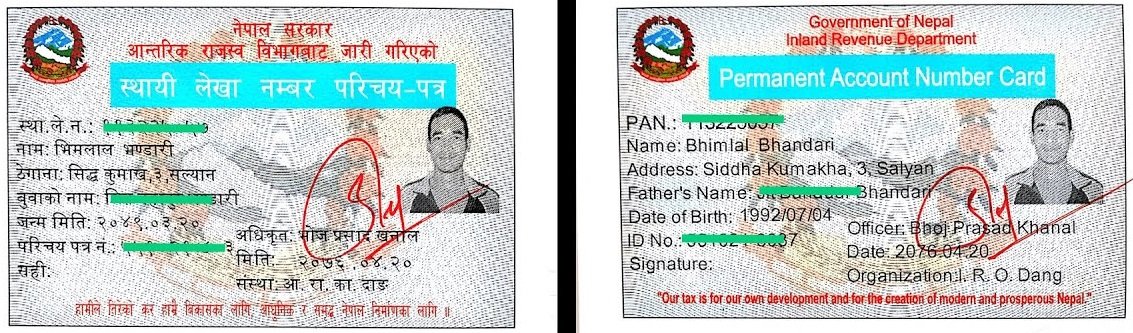
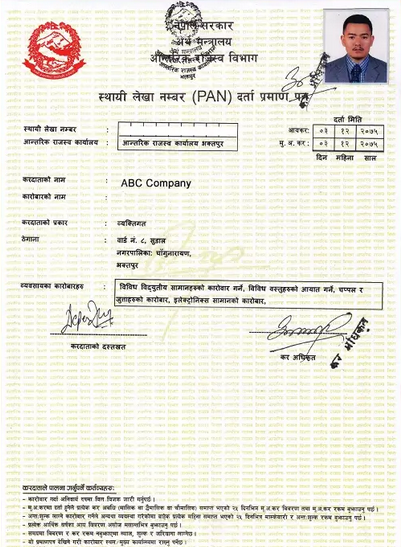
Note: This guide focuses on Personal PAN (Individual PAN) Registration. The process for Business PAN Registration differs and requires additional corporate documents.
Personal/Individual PAN Registration Process In Nepal
Method 1: Personal PAN Registration Via IRD Website (Computer Or Mobile)
This is the most widely used method for applying for a personal PAN (Individual PAN) online in Nepal. You can complete this from any browser on a mobile phone or computer.
Step 1: Open The IRD Taxpayer Portal
- Open your browser (Chrome or Firefox recommended) and go to: www.ird.gov.np
- On the homepage, click on “Taxpayer Portal”.
- In the left-hand menu, find “Registration (PAN, VAT, EXCISE)” and click the plus (+) icon to expand it.
- Select “Application for PPAN Registration” (PPAN = Personal PAN).
Tip: If using a mobile browser, tap the three-dot menu and enable “Desktop Site” for the best experience.
Step 2: Enter Your Mobile Number And Verify Via OTP
- Enter the mobile number you want to register with your PAN.
- Important: If you have a National Identity Card (NID) enter the mobile number that was registered when your NID was created – this will auto-fill most of your personal details.
- Enter the CAPTCHA shown on screen and click Continue.
- A 4-digit One-Time Password (OTP) will be sent to your mobile. Enter it and click Continue.
Step 3: Select Your Nearest Revenue Office
- Choose your nearest Inland Revenue Office (IRO) or Taxpayer Service Office (TSO) from the dropdown list.
- You will need to visit this office in person to collect your physical PAN Card – so select a location that is convenient for you.
- If you are linking your National Identity Card, you do not always need to visit the office – your PAN can be issued digitally.
Step 4: Link Your National Identity Card (NID) – Recommended
- When asked “Do you have a National Identity Card?” select Yes.
- Enter your NID number (National Identification Number).
- Click Continue – your personal details (name, date of birth, gender, permanent address) will auto-populate from the NID system.
- If you do not have an NID, select No and fill in all fields manually in the next steps.
Step 5: Fill In Personal Information
- Verify your first name, middle name (if any) and last name – enter in both Nepali and English.
- Confirm your gender, date of birth (in Bikram Sambat) and nationality (Nepal).
- Upload your passport-sized photograph.
- Select your residency type – Resident or Non-Resident.
- Indicate whether you are a minor (answer No for most adults).
- Click Next.
Step 6: Fill In Address Details
- Enter your permanent address – district, municipality/VDC, ward number and tole (street/neighbourhood) in both Nepali and English.
- If your current (temporary) address differs from your permanent address, fill in the temporary address section.
- Fields marked with an asterisk (*) are mandatory.
- Enter your contact mobile number (mandatory) and email address (optional).
- Click Next.
Step 7: Upload Supporting Documents
- Select document type – Citizenship Certificate.
- Enter your citizenship number, the issuing office name, the issuing office location and the date of issue.
- Upload a scanned image or clear photo of your citizenship certificate (front and back in one image – JPG/JPEG format).
- For foreign nationals – upload your passport and relevant supporting documents instead.
- Click OK, then Next.
Step 8: Enter Family / Relative Details
- Add at least one family member’s details (father, mother, grandfather or spouse).
- If your NID is linked, these details may auto-fill.
- Select the relationship, then enter the person’s first name, middle name, last name (in Nepali and English).
- Enter their citizenship number and contact number.
- If they have a PAN, you may optionally add it.
- Click Add, then Next.
Step 9: Enter Financial / Occupation Information
- Select your source of income – Employment (Rojgari), Business, Investment, etc.
- If employed, specify whether it is government or private sector.
- Add any professional licence or certificate number if applicable.
- Bank account details are optional – however, providing them makes future tax refund processing easier.
- Click Next.
Step 10: Review, Self-Declaration And Submit
- Carefully review all the information you have entered – personal info, address, documents, family details, and financial info.
- If anything is incorrect, click the relevant section to go back and correct it.
- Once satisfied, tick the self-declaration (Swa-Ghoshana) checkbox to confirm that all information is accurate.
- Click Submit.
- Important: Once submitted, you cannot change the details. Double-check everything before submitting.
Step 11: Receive Your PAN Number
- After successful submission, your PAN number will be generated automatically.
- You will receive your PAN number via SMS on your registered mobile number and also via email (if provided).
- A confirmation message will appear – “Your application has been successfully registered and your Permanent Account Number has been automatically generated.”
- Click OK, then click “Print PAN Card” to download and save your PAN Card as a PDF.
- You can print this digital PAN Card in Colour – it is the official Card.
- To collect a physical PAN Card, visit the revenue office you selected during registration.
Note: The entire online registration process takes approximately 5-15 minutes if your National Identity Card is linked. Without the NID, allow 20-30 minutes to fill in all details manually. Registration is completely free of charge.
Method 2: Personal PAN Registration Via Nagarik App (Mobile)
The Nagarik App is the official Nepali government mobile application. It offers one of the fastest ways to create an Individual PAN Card entirely from your smartphone.
Step-By-Step: PAN Registration On Nagarik App
- Download and install the Nagarik App from the Google Play Store (Android) or the App Store (iOS).
- Open the app and register using your mobile number. Enter the OTP sent to your phone to verify your number.
- Verify your identity by entering your citizenship number and date of issuance or use your National Identity Card, Voter ID or Driving Licence.
- Add your citizenship details and a passport-sized photo.
- On the app’s main screen, tap the “PAN” option.
- Tap “Click Here to Register PAN”. If a PAN already exists, it will be displayed here instead.
- Choose your nearest revenue office from the list (e.g. Kathmandu, Dhangadhi, Janakpur, Butwal, etc.).
- Tap Proceed. You will receive a submission number – take a screenshot and save it.
- Your citizenship details will auto-populate. Verify the name (English and Nepali), date of birth, gender and citizenship number.
- Fill in the permanent address (district, municipality, ward number, tole – in Nepali and English) and current address.
- Enter family member details – father’s name (first, middle, last), mother’s name (optional) and spouse’s name if married.
- Tap Proceed and carefully review all details on the summary screen.
- Tap Proceed again to confirm and submit. Your PAN Card will be created immediately within the app.
- Your PAN number and a digital PAN Card will appear on screen – you can also see the issuing office name and date. Download or screenshot this for your records.
Note: To collect a physical PAN Card, visit the revenue office shown on your digital Card. There is no fee for this. The issuing date and office are printed on the digital Card.
Fastest Method: Registering PAN Using Your National Identity Card (NID)
If you already have a National Identity Card (Rastriya Parichaya Patra), you can use it to create a personal PAN Card with minimal manual data entry. This is currently the quickest method available.
Why NID-Linked PAN Registration Is Faster
- Your personal details (name, date of birth, address, family information) auto-populate from the NID database.
- You do not need to upload your citizenship certificate separately – citizenship data is pulled automatically.
- Family members’ details (father, mother, spouse) also auto-fill – no manual entry needed.
- Your PAN Card can often be downloaded immediately without a physical office visit.
How To Use NID For PAN Registration
- On the IRD website (ird.gov.np) or Nagarik App, when prompted about your National Identity Card, select Yes and enter your NID number along with the mobile number used when registering your NID.
- The system will verify your identity and auto-fill your application. Follow Steps 5 through Steps 11 from Method 1 above – most fields will already be complete.
How To Search Or Check PAN Card Details Online
You can verify any PAN Card’s details – including the Card holder’s name, address, registration year and whether they are registered under income tax or VAT – using the IRD’s public PAN search tool. This is useful when verifying a business partner’s PAN before a transaction.
Method A: Via IRD Website
- Go to www.ird.gov.np On the homepage, click “Search PAN”.
- Enter the 9-digit PAN number in the PAN Field.
- Answer the simple numeric CAPTCHA question (e.g. “What is 1 + 0?”).
- Click Search. The full PAN details will appear – name, registered address, tax type (income tax/VAT), tax clearance status and more.
Method B: Via Google Search
- Open Google and search – “PAN Card Details Online”.
- The first result will typically be the IRD’s PAN search page.
- Enter the PAN number – then click Search.
Method C: Via Nagarik App
- Open the Nagarik App and go to the PAN section.
- Enter the PAN number and tap Search – the registered Card details will be displayed.
What PAN Search Reveals
- The search results show – the taxpayer’s full name, registered address, whether the PAN is a personal or business PAN, the date of registration and the current tax clearance status (which fiscal year’s taxes have been cleared).
- You can also confirm whether the PAN belongs to an individual or a company.
How To Recover A Lost Or Forgotten PAN Number
In Nepal, each person can only ever hold one PAN number. If you lose your PAN Card or forget your number, you cannot create a new one – you must recover the existing one. Here are the ways to do so.
Option 1: Email The IRD
Send an email to the IRD’s helpdesk (serviceird@ird.gov.np). Include the following in your email.
- Your full name (as on citizenship certificate).
- Your citizenship certificate number.
- Your date of birth.
- Your father’s full name.
- Your registered mobile number or email (if you remember it).
- A scanned copy or clear photo of your citizenship certificate attached.
Compose the email with a clear subject line such as “PAN Number Recovery Request”. The IRD will reply with your PAN number.
Option 2: Visit The IRD Office
Visit your nearest Inland Revenue Office with your original citizenship certificate and a passport-sized photo. Present your details to the IRD officer, who can retrieve your PAN number from the system.
Option 3: Use Nagarik App Or IRD Website
- Once you have recovered your PAN number via email or office visit, you can link it in the Nagarik App by entering the number in the PAN section.
- This will pull up your digital PAN Card for download or screenshot. Alternatively, use the PAN search tool on the IRD website to verify the number.
Cost And Time For PAN Registration In Nepal
| Factor | Details |
| Registration Fee | Completely FREE – for both Nepali citizens and foreign nationals. |
| Time to Receive PAN Number | Typically a few minutes to a few hours after submitting the online form. The PAN number is generated automatically upon successful submission. |
| Time for Physical PAN Card | Collect on the same day by visiting the selected revenue office during working hours. |
| PAN Expiry | PAN does not expire. However, changes to address, contact details or ownership structure must be updated at the IRD. |
Contact Information Of IRD
Website: ird.gov.np
Email: serviceird@ird.gov.np
Phone No: 015970176
Disclaimer: This article is for informational purposes only and does not constitute legal or tax advice. For specific guidance, please consult a qualified tax professional or contact the Inland Revenue Department of Nepal directly.